Workflow
How to Batch Convert HEIC to JPEG Safely
A reliable batch workflow for preserving originals, checking quality, controlling dimensions, and organizing JPEG output.
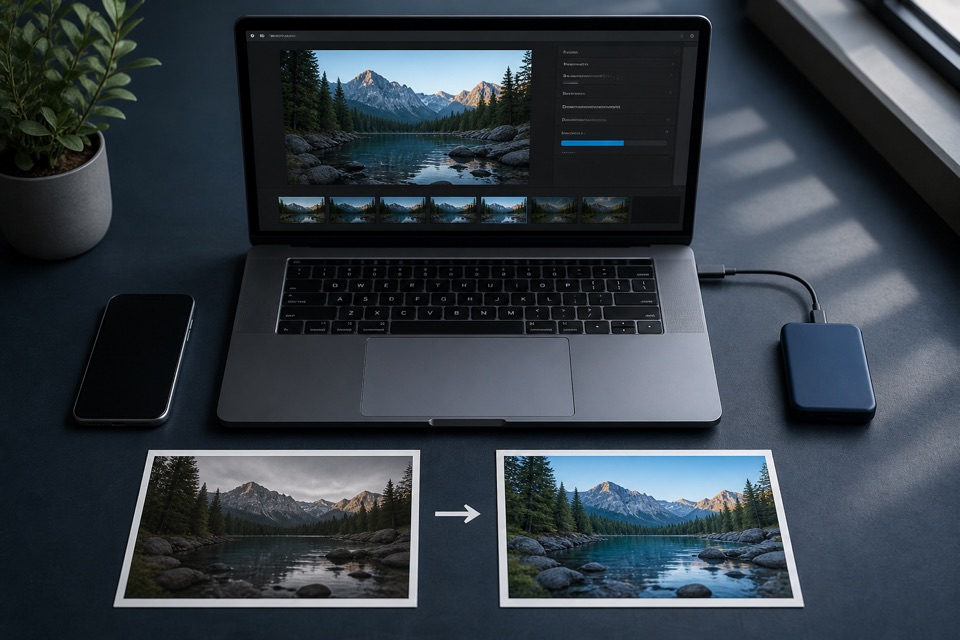
Test before processing the folder
Choose a portrait photo, a landscape image, a low-light shot, an edited photo, and the largest file in the batch. This small set exposes orientation, color, memory, and quality issues before they affect every image.
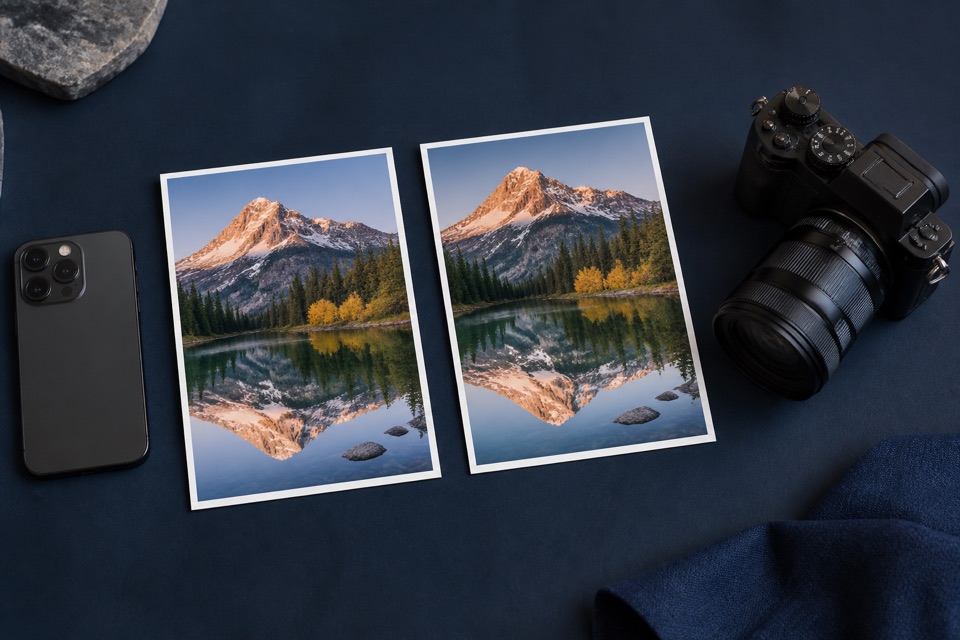
Use the same JPEG quality and resizing settings you plan to use for the full batch. Compare dimensions, crop, visible detail, and file size.
A safe batch workflow
- Back up the HEIC originals or work from a duplicate folder.
- Convert manageable groups instead of an entire library in one browser session.
- Keep original dimensions unless the destination requires smaller images.
- Use predictable filenames so each JPEG can be traced to its HEIC source.
- Open samples from every completed batch before moving on.
- Back up verified JPEGs before removing working copies.
Choose quality for the destination
High JPEG quality is appropriate for general sharing and printing. A lower setting can make web or email copies smaller, but inspect faces, text, fine patterns, and low-contrast gradients for compression artifacts.
Avoid repeated JPEG re-saving. Return to the HEIC original whenever you need a fresh derivative at another size or quality.
Sources and further reading
We use primary technical documentation for the claims in this guide.
Ready when you are
Convert your HEIC files privately
No uploads, no account, and no software to install.