Mac guide
How to Convert HEIC to JPEG on a Mac
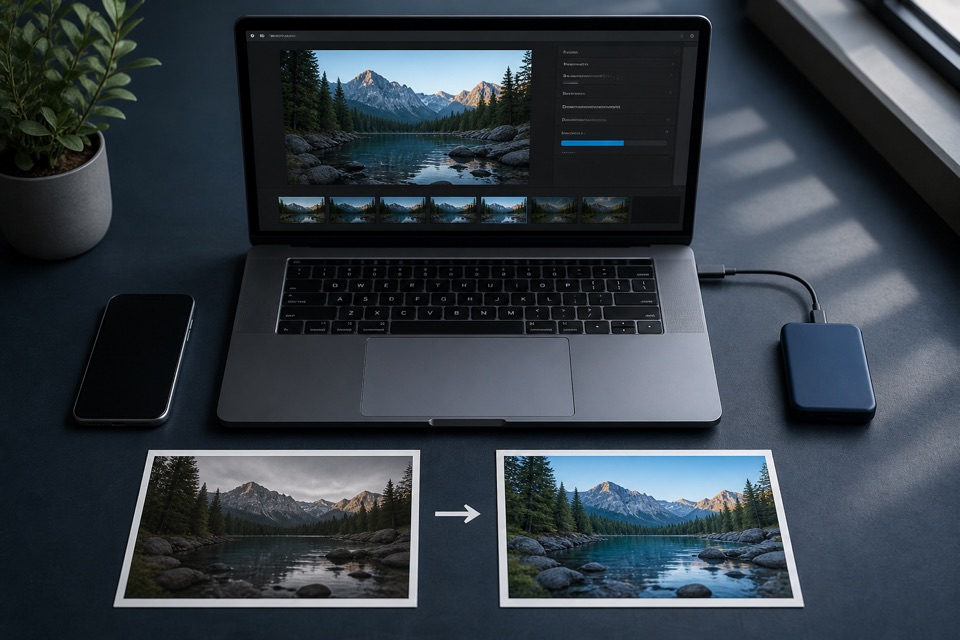
Use Preview, Photos, Finder Quick Actions, or a private browser converter to create compatible JPEG copies on macOS.
Convert with Preview
- Open the HEIC image in Preview.
- Choose File > Export.
- Select JPEG as the format and choose a quality level.
- Save under a new filename, then inspect the exported image.
Export from Photos
In Photos, select the image and use File > Export. This is useful when the photo already lives in your library and you want control over the exported file type, quality, and size.
Keep the library original. An exported JPEG is a compatible derivative and may not contain every piece of information stored with the Photos item.
Batch and browser options
Current macOS versions can expose image conversion through Finder Quick Actions. For a consistent cross-platform workflow, HEICtoJPEG can also process a small batch locally in a supported browser without uploading the photos.
Sources and further reading
We use primary technical documentation for the claims in this guide.
Ready when you are
Convert your HEIC files privately
No uploads, no account, and no software to install.